
A hard drive not recognized by your computer is not necessarily lost. However, some instinctive actions can make things worse and reduce the chances of recovering the data. Here is what to avoid and what to do straight away.
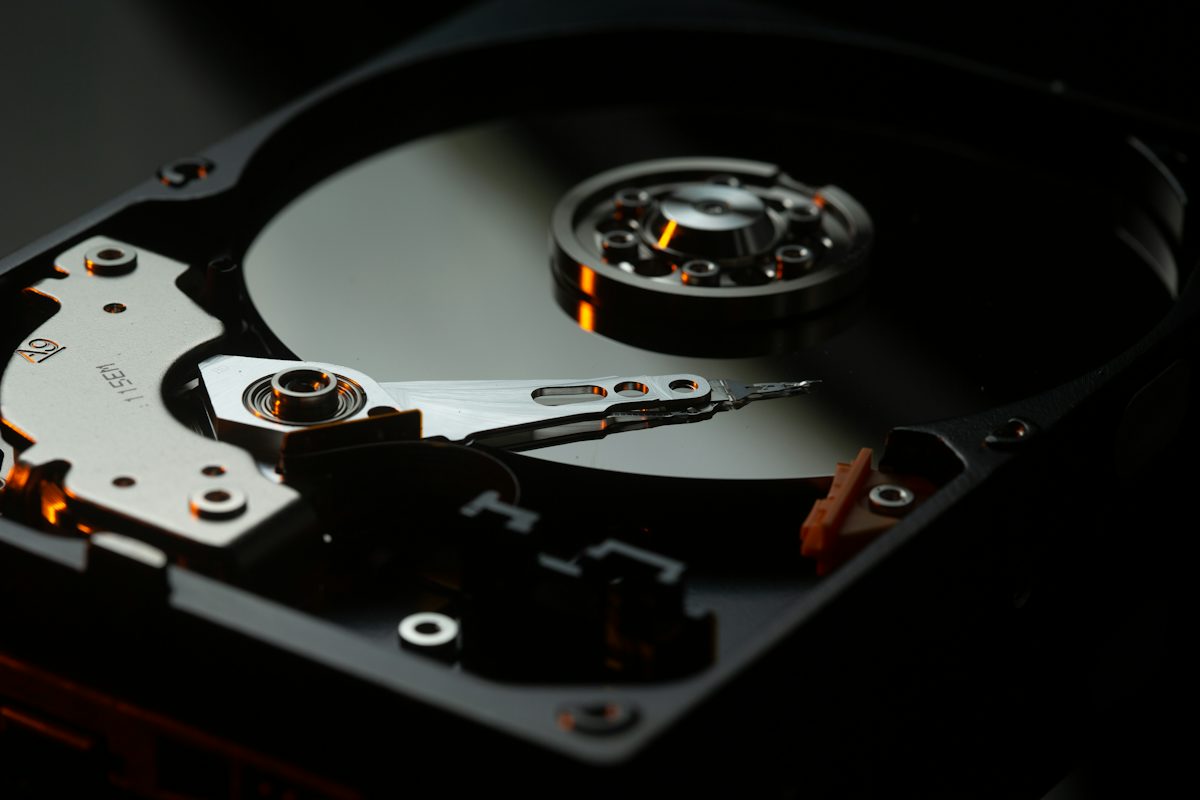
Why a hard drive is not recognized
The causes can be logical, such as a damaged partition, or physical, such as failed heads, motor or electronics. A drive that makes noises, clicks or does not spin is almost always a physical case. A silent drive that does not appear in File Explorer, instead, may have a file system problem.
Hard drive not recognized: what not to do
- Restart the computer over and over, hoping the drive will come back
- Use recovery software on a drive that makes noises
- Open the drive or put it in the freezer, as some forums suggest
- Initialise or format the drive when Windows offers to
Hard drive not recognized: what to do
Switch the device off, write down what happened before the fault and contact a specialist for a diagnosis. If the drive is part of a NAS or a RAID system, do not start automatic rebuilds: one mistake can overwrite the data on every drive.
External drives, SSDs and USB sticks
The same applies to external USB drives, SSDs and flash drives. SSDs in particular can stop working suddenly and silently when they fail. In these cases, avoid connecting them to several computers or updating the firmware: note the model and the symptoms and leave the diagnosis to a specialist. Sometimes a faulty cable or USB enclosure is the only cause, so it is worth ruling out the simplest explanations first.
When you need professional recovery
If the data matters and the drive shows signs of a physical fault, turn to a professional recovery service for drives, SSDs and NAS. After the recovery, set up a plan of automatic backups, so a drive that is not recognized will never be an emergency again.